×
  • News
  • Reviews
  • Guides
  • Features
  • Videos
  • News
  • Reviews
  • Guides
  • Features
  • Videos
Log in / Register
HARDWARE REVIEW

Elgato HD60 Pro Review

by Kieron Davies, May 28th, 2017

Streaming and YouTube gaming videos has never been a bigger market, from the lower ends of the Twitch streamer all the way up to the multimillionaires, almost every gamer watches a stream or YouTuber, or is a content creator themselves.

As gaming markets have grown and merged over the years, console exclusive games are becoming very much a selling point for console creators, it stands to reason that a piece of hardware to bridge the gap between PCs and consoles needed to be created, and therein the capture card was born.

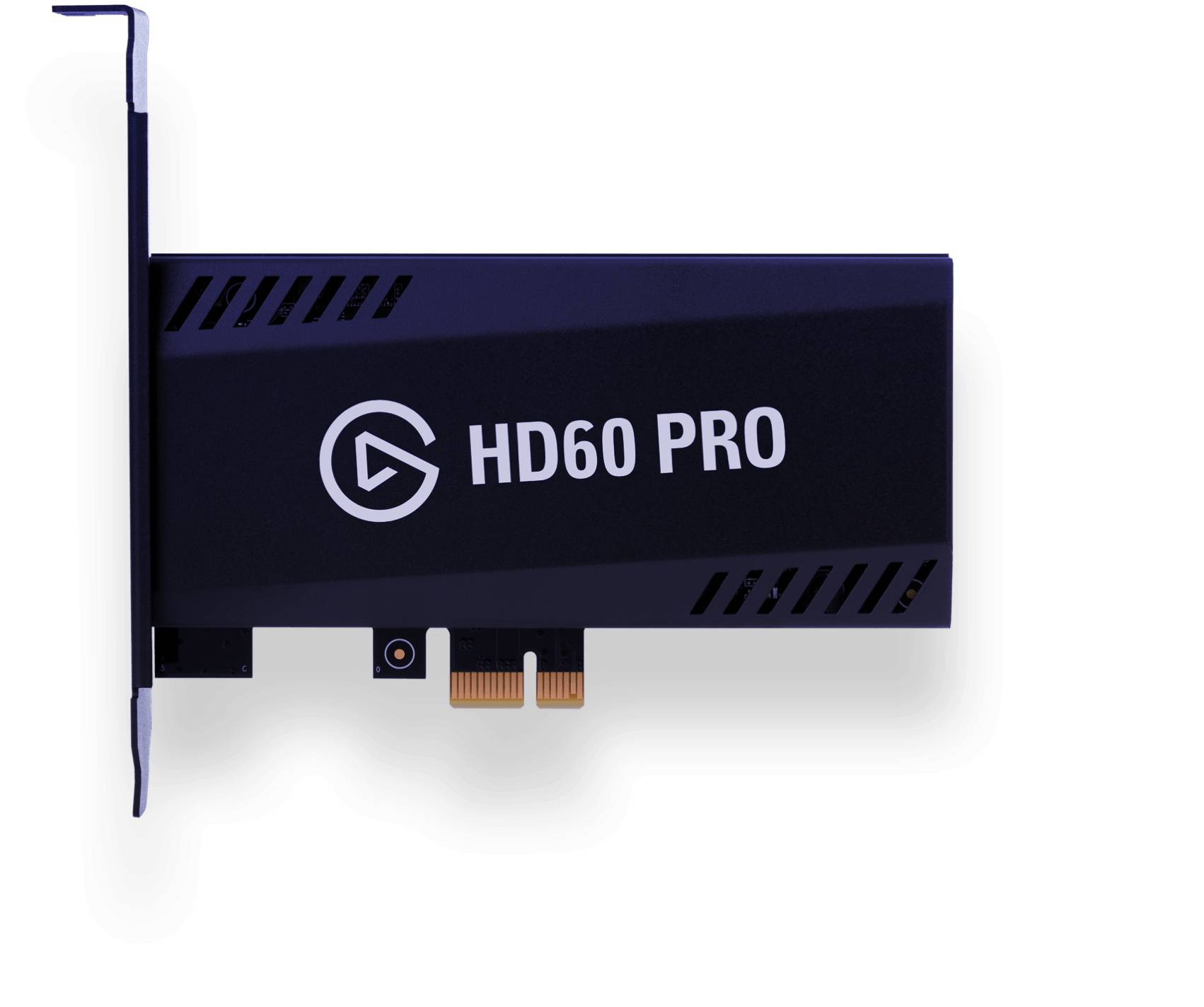
Elgato is one of the biggest names in capture card technology, their HD60 range pretty much the go-to cards for streamers and YouTubers alike. Today we look at the top of the range HD60, the HD60 Pro, a PCI-e card designed to be installed into a PC with the main function of eliminating input lag.

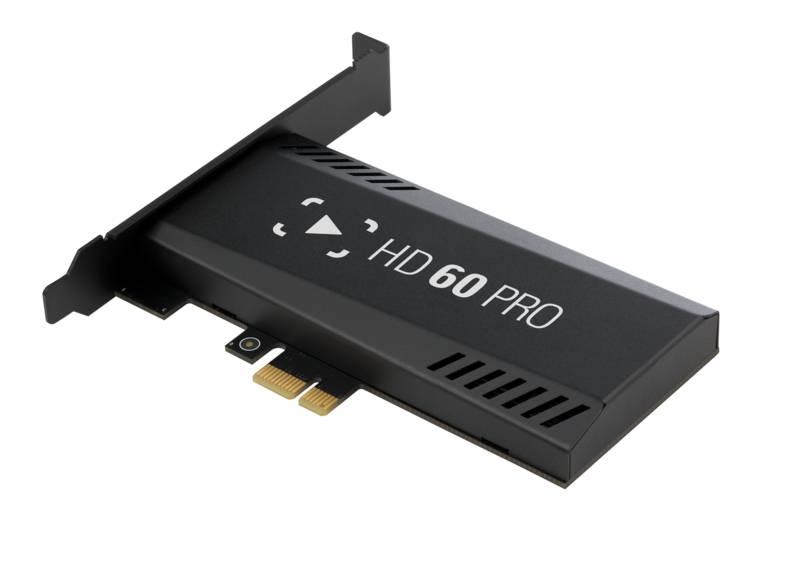
As far as design goes, the card is a very sleek black metal with a nice big logo on the front, but then you install in into a PC and only see two HDMI slots on it, but at least you know deep down as you stream that your capture card is looking good inside your rig. The back plate isn’t too big either and fits perfectly into most case slots due to its low profile design, standard sized, larger and even micro ITX cases would have no issue having a HD60 Pro installed.

Users of Micro ITX cases need to be aware however that the card utilises a PCI-E x1 slot so smaller motherboards won’t be able to support it, but every motherboard from the last several years should have no issue installing and running the capture card.

There is no heatsink on the capture card however I’ve had no issues whatsoever with overheating or even anything close to heat induced performance drops even after long gaming and streaming periods.

The tech specs prove the card to be powerful with a lot going on. Under the hood, you’ll find a MStar chipset, a Vatics Mozart encoder, an ITE HDMI interface and 2 x 2Gb Samsung DDR3 memory chips. The 2GB of memory really help the card run as fast as possible at it utilised the video card and CPU within your machine.

Installing the capture card is a simple feat if you know anything about PCs, or you don’t. The card slots into a PCI-e slot without any need for cables, just plug it in and you’re ready to go. The card features both an input and output slot via HDMI. You take the HDMI from your console, put it into the input and take a separate cable, plugging it from the output to your gaming monitor.

If you’re the type of gamer who owns every console under the sun, don’t worry, the HD60 Pro also works perfectly well with HDMI switches, as I currently have both my Xbox One and PS4 connected to the inputs of a switch, then the output connected to the input of the capture card.
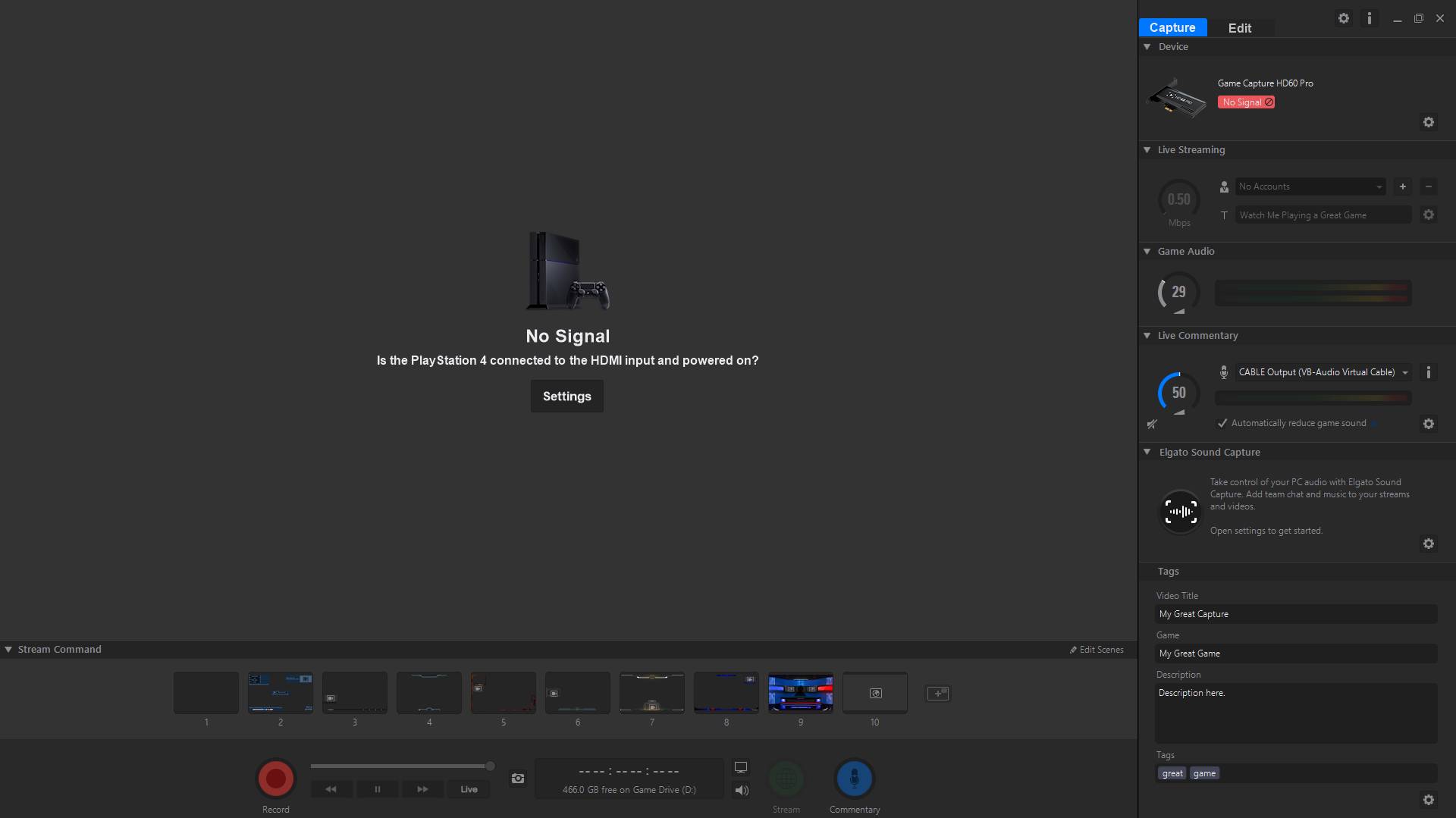
Once the card is installed and the consoles are connected, it’s simply a case of downloaded Elgato’s Game Capture HD software. This software displays the input from whichever console is switch on at the time. I recommend having only one console switched on at a time to avoid any confusion within the software. The software comes with built in streaming overlays, allows for audio throughput to your headphones from the consoles and even allows you to stream and record straight from the software.

However good the software is, it’s still not as dynamic as dedicated streaming software like OBS or Xsplit. My streaming setup for consoles uses OBS capturing the Capture HD pro window.

Playing with your streaming and recording quality options is going to be a big part of making your content look the best or smoothest it can be. There are very obvious jumps in quality from your lowest and highest recording settings, even if you record at 1080p. For capturing on Xbox One, I set capture to 60FPS, meaning if the game can run at 60FPS, then it’ll be captured in that. The HDMI colour range is set to standard as opposed to expanded as there isn’t very noticeable difference when streaming at 720p. However, I capture the footage in 1080p which OBS then downgrades to 720p, this is so the game is still enjoyable to play and also allows you to play at 1920×1080 resolution, much like with streaming a game at 720p, you’d still play in 1080p on your PC.

Finally, there is a sliding scale of “Good”, “Better” and “Best” quality. Obviously the more powerful your PC, the higher up the quality scale you can go. I sit mine right in the middle as the game still looks great, but also plays smoothly and doesn’t overload my GPU.

Elgato’s Gameview allows the gamer to full screen the capture and literally play through the software with no noticeable delay. This really helped when I was streaming some Halo 5 that I didn’t have to flick between monitor inputs, just load up the software, full screen in, monitor capture in OBS and you’re good to go. The difference between a 720p and 1080p recording both at highest quality for a 30 second recording was a different of 100MB, the 1080p recording was literally double that of the 720p, but obviously, the picture was a lot clearer due to the higher resolution.

720p is usually looked down upon in the age of 4K qualities, but the videos recorded in 720p with the HD60 Pro still look very good on YouTube.

1080p at low-quality settings looks good, but definitely not the best the HD60 Pro can deliver.

Finally, the Elgato 1080p high-quality recordings look fantastic, as you can see below.

Lowering the quality slightly, about half way between better and best reduced the 1080p file size by 50MB over a 30 second recording, and the different between the two is negligible. There may seem a little bit of fuzziness around edges of player models or corners of maps, but nothing that’ll really take away from the viewing experience, at it will save a lot of hard drive space in the process.

The best thing about the HD60 Pro over the other cards in the HD60 range is the lossless play through. With the standard HD60 cards, there is a noticeable delay between actions taken on the controller, and what is displayed on the screen. However, with the HD60 Pro, there is virtually zero delay, it is milliseconds, which you won’t even be able to feel while you play. This makes it much easier when streaming as you don’t have to change your monitor’s input, you can just play by watching the input capture on the Capture HD software. However, there is still the usual OBS delay between the Capture HD software and the OBS capture.

For streamers, one of the most useful features is the fact the Pro 60 utilizes GPU power instead of CPU power to render the video being captured. This means that even when capturing video and streaming on OBS, the CPU usages was showing at around 20%, not bad for an older generation i7.

So, is this the capture card for everyone? Certainly not. It is very niche in the fact that it needs to installed into a PC, a lot of casual streamers who do it for a hobby or once every so often aren’t going to feel the full benefits. However, those who stream multiple days a week playing a wide range of games on a wide range of platforms are going to find the HD60 Pro very useful, very powerful, and very user friendly.

9
A very power capture card which almost removes all input lag to make it unnoticeable. For the price, it is definitely designed for a niche hard-core market but more than worth the cost.

Filed under: capture card Elgato streamers Youtubers

Christmas Gift Guide
VGU’s Holiday Gift Guide 2016: TV & PC Streaming Devices
Powered by Magic
  • VGU
  • Platforms
  • Features
  • Reviews
  • Games

© 2025 VGU.

Insert/edit link

Enter the destination URL

Or link to existing content

    No search term specified. Showing recent items. Search or use up and down arrow keys to select an item.